Tutorial
Align sequences and build a tree
Align eight DNA sequences with muscle, infer their tree with FastTree, and check it against the tree they were simulated on. All in your browser.
What you will learn
- Align several sequences with muscle
- Infer a tree with FastTree and read it in Newick format
- Interpret branch lengths and support values
- Compare sequences with TN93 genetic distances
The data
Eight simulated DNA sequences of 594 to 606 bp in four lineages (A, B, C and D, two sequences each). They evolved along a known tree: A with B, C with D. Small insertions and deletions make their lengths differ. Because it is simulated, you can check the tree you get.
Tools in this tutorial
- muscle
- Aligns several sequences to one another, inserting gaps so that matching positions line up in columns.
- FastTree
- Infers an approximately maximum-likelihood phylogenetic tree from an alignment and writes it in Newick format with support values.
- TN93
- Computes pairwise genetic distances between aligned sequences with the Tamura–Nei 1993 model and lists the pairs closer than a threshold.
Watch it first
The whole tutorial in under 2 minutes, recorded in the live app. The run is sped up.
Steps
- 01
Load the sequences
Open the Workflow Builder at biochef.app. In File manager, upload
sequences.fastaand tick it for the Input node. New to the editor? The map reads tutorial shows each move with screenshots. - 02
Align the sequences
Search
muscleand add Align (muscle); connect the Input to it. The sequences have different lengths because of small insertions and deletions, so they must be aligned before they can be compared position by position. Add an Output after muscle to see the alignment. - 03
Build the tree
Select muscle, search
fasttreeand add Build Tree (FastTree). Connect muscle to it, then add an Output after it.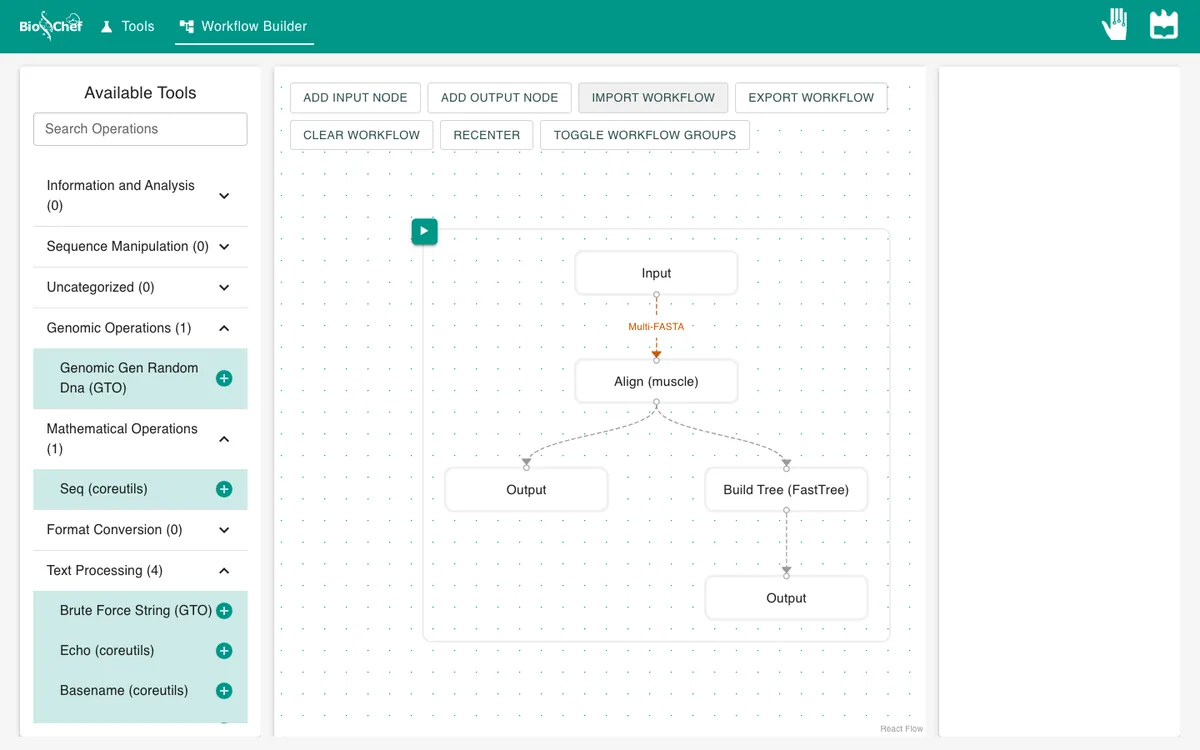
- 04
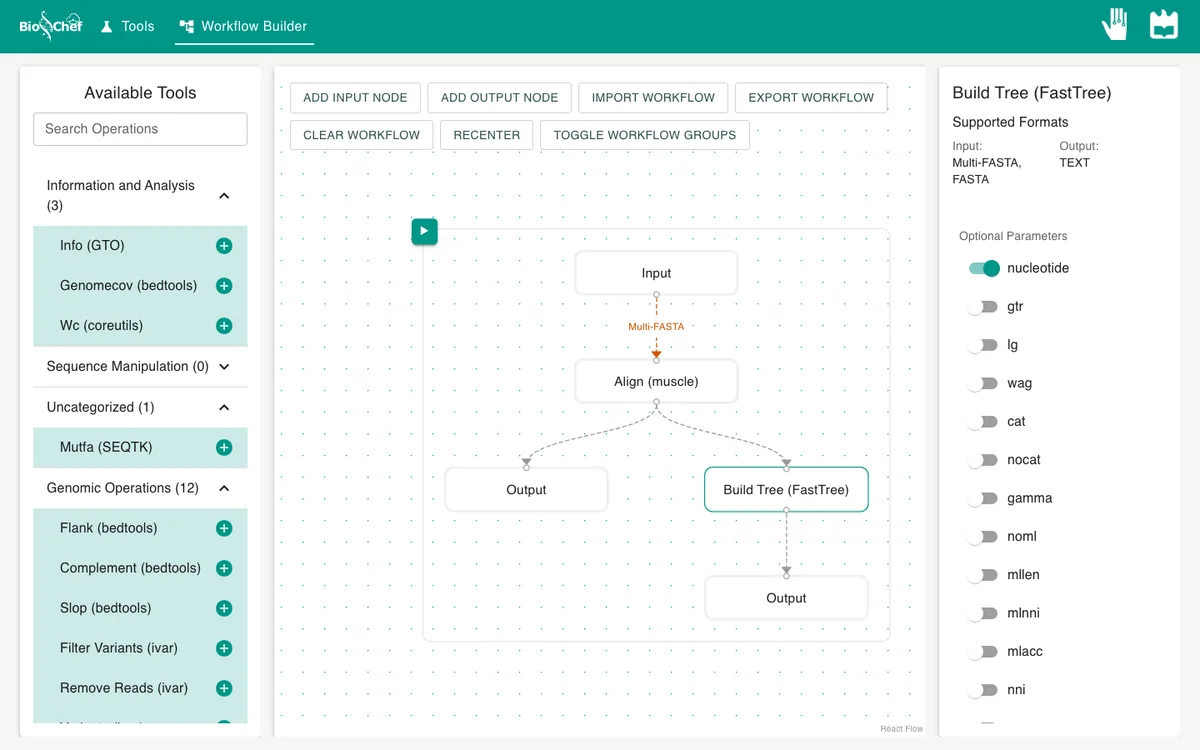
Tell FastTree these are DNA sequences
Click the FastTree node and switch on nucleotide. Without it, FastTree reads the alignment as protein.
- 05
Run and look at the alignment
Press ▶ and click the alignment Output. All eight sequences now have the same length, 606 positions, with
-where a sequence has a gap.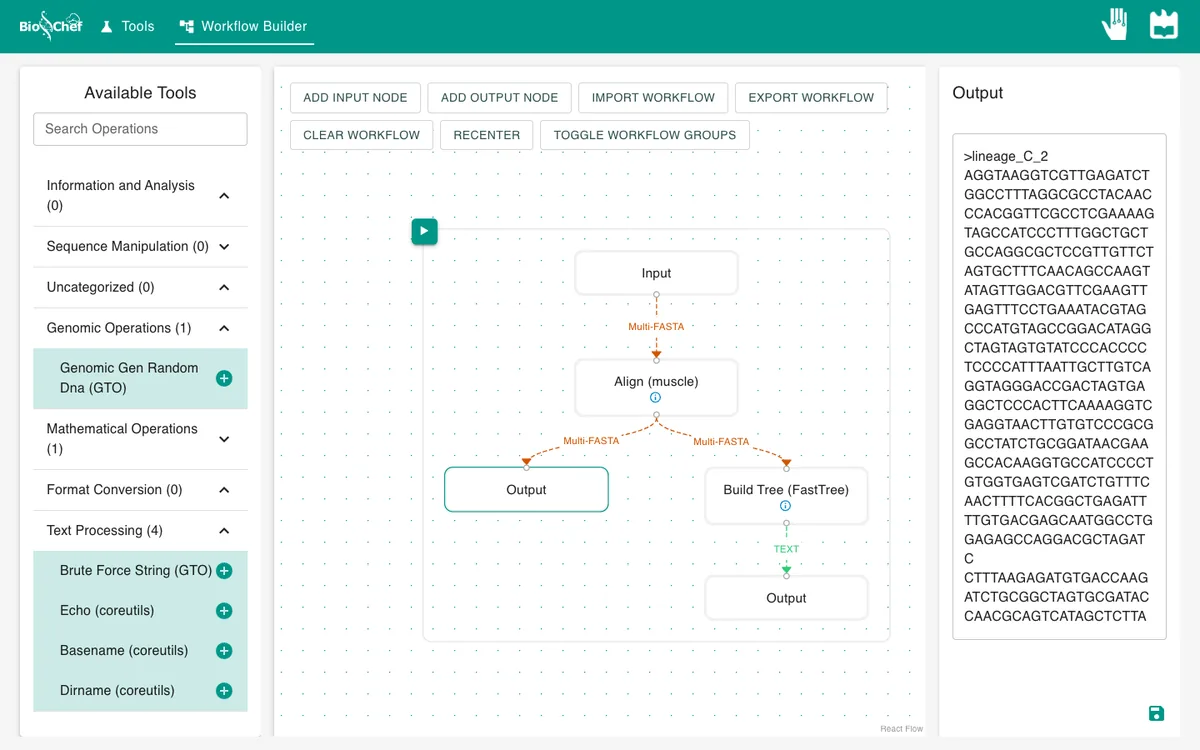
- 06
Read the tree
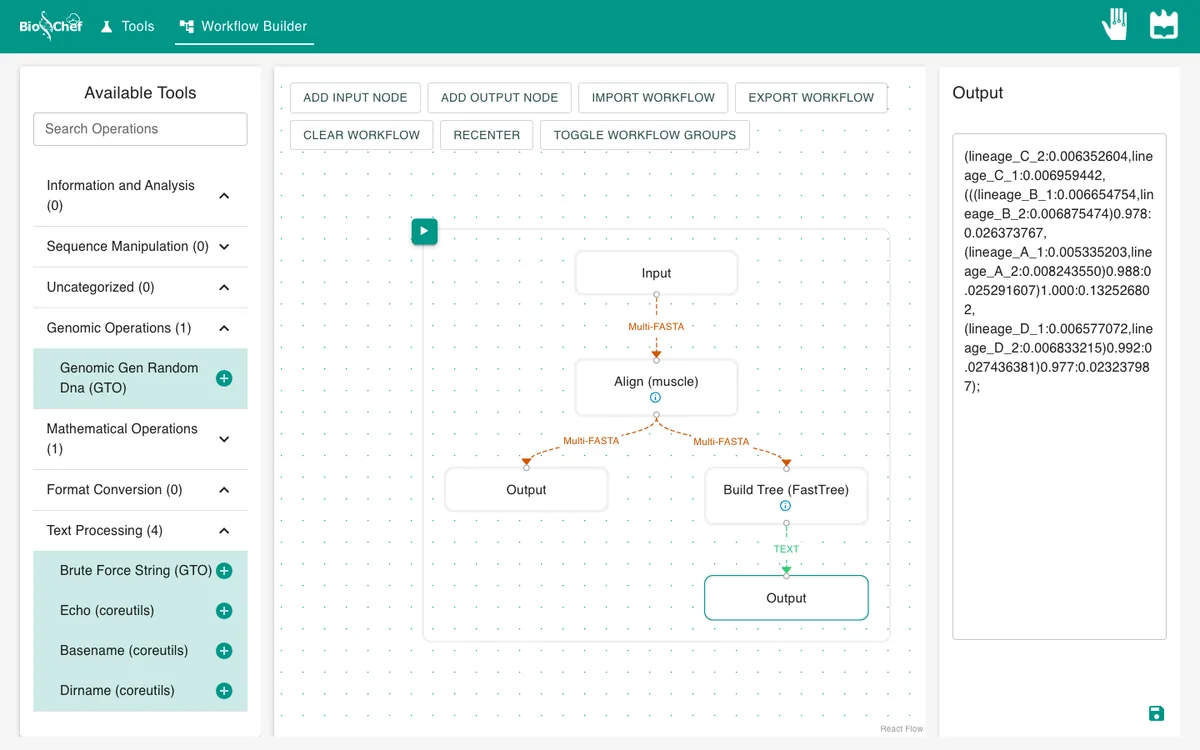
Click the tree Output. FastTree writes the tree in Newick format: brackets group sequences, numbers after a colon are branch lengths, and numbers after a closing bracket are support values from 0 to 1.
What you should see
(lineage_C_2:0.0064,lineage_C_1:0.0070,(((lineage_B_1:0.0067,lineage_B_2:0.0069)0.978:0.0264,
(lineage_A_1:0.0053,lineage_A_2:0.0082)0.988:0.0253)1.000:0.1325,
(lineage_D_1:0.0066,lineage_D_2:0.0068)0.992:0.0274)0.977:0.0232);
Shortened here to four decimals. Each pair of sequences from the same lineage sits together, A groups with B (support 1.000) and C with D: the tree the sequences were simulated on. The long branch (0.13) separates the two groups. The tree is unrooted, so it starts from an arbitrary point (here lineage C); the groupings are what matter.
The same tree, drawn
Drawn with the root between the two groups. Paste the Newick text into any tree viewer to draw it yourself.
            ┌── lineage_A_1
        ┌───┤
        │   └── lineage_A_2
    ┌───┤
    │   │   ┌── lineage_B_1
    │   └───┤
    │       └── lineage_B_2
────┤
    │       ┌── lineage_C_1
    │   ┌───┤
    │   │   └── lineage_C_2
    └───┤
        │   ┌── lineage_D_1
        └───┤
            └── lineage_D_2
Use the finished workflow
Import the finished workflow, data included, and press ▶. Remember that an exported workflow contains the data loaded in its Input nodes.
Exercise: which sequences are closest?
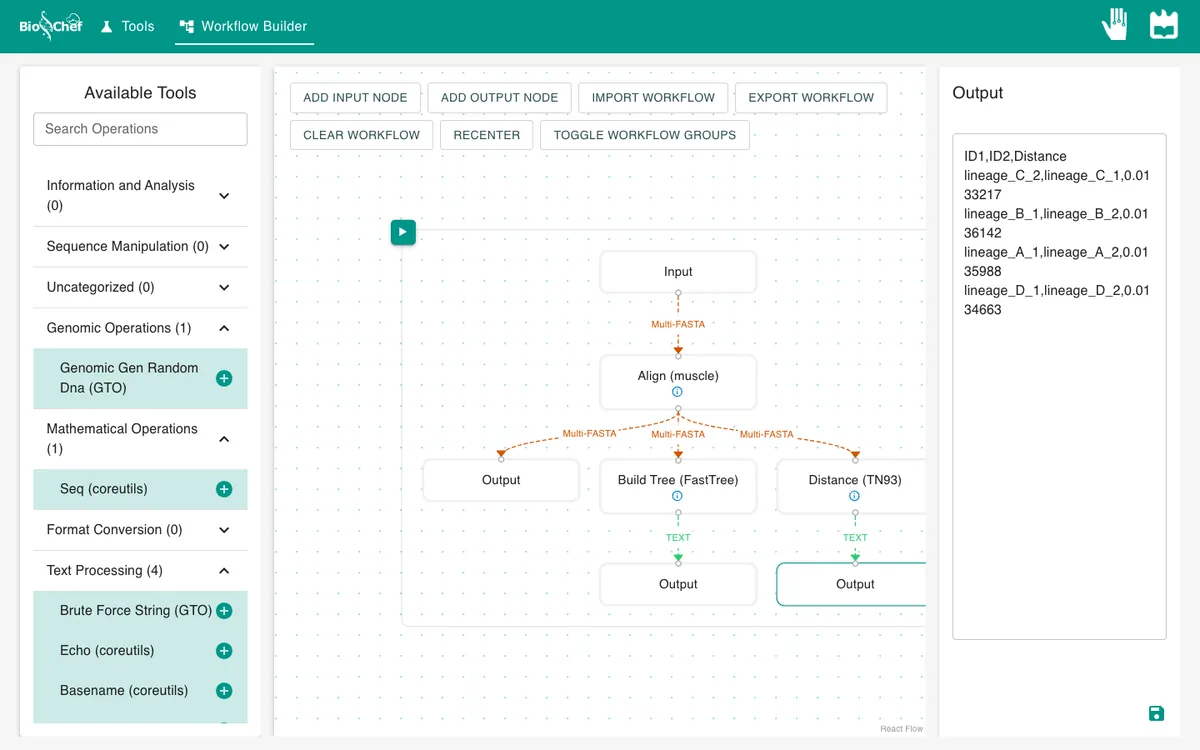
Select muscle and add Distance (TN93), connect muscle to it, add an Output and run. TN93 lists only the pairs closer than its default threshold of 0.015 substitutions per site. You should get exactly four pairs, the two sequences of each lineage, at distances of about 0.013 to 0.014. Switch on threshold and raise it to see more distant pairs.
From a test to a full run
The browser is the place to build and test a workflow on small data like this. For full datasets, the same workflow file is meant to run next to the data with the BioChef agent, which is in development. See Workflows for how the two fit together.
More tutorials: all BioChef tutorials.
This tutorial is licensed under CC BY 4.0. If you use BioChef in your work, please cite Rosa et al., BMC Bioinformatics 2026. BioChef is listed in bio.tools as biotools:biochef.